Introduction
Welcome to the UConn Ignite 2026 GiveCampus Page-Building Guide!
This guide is intended to be a roadmap of how to navigate building and editing your group’s GiveCampus page.
GiveCampus Page Structure
- Tier 1: The main Ignite landing page.
- Tier 2: Pages separating Student Organizations, Club Sports, and School of Law Student Organizations into categories that sit directly under Tier 1.
- Tier 3: Your page!
Tier 2 pages have been created by Foundation staff.
The Foundation has created your page, but it is your responsibility in to add images and content. As a requirement for approval, each page must include:
- 100 words on who you are, what your group does, the impact your group has, and what you plan to do with the funds raised
- 630×350 Landing Page Image
- 600×400 Campaign Card Thumbnail
- The line “Any additional funds will be used for the general activities of UConn student-led organizations.”
All pages must be complete and ready for Foundation review by September 29. Final review confirms that each page is appropriate, functioning correctly, and meets all approval requirements.
Getting Access to GiveCampus
Step 1: Points-of-Contact will receive an email from GiveCampus indicating they’ve been granted Administrator access to GiveCampus for University of Connecticut.
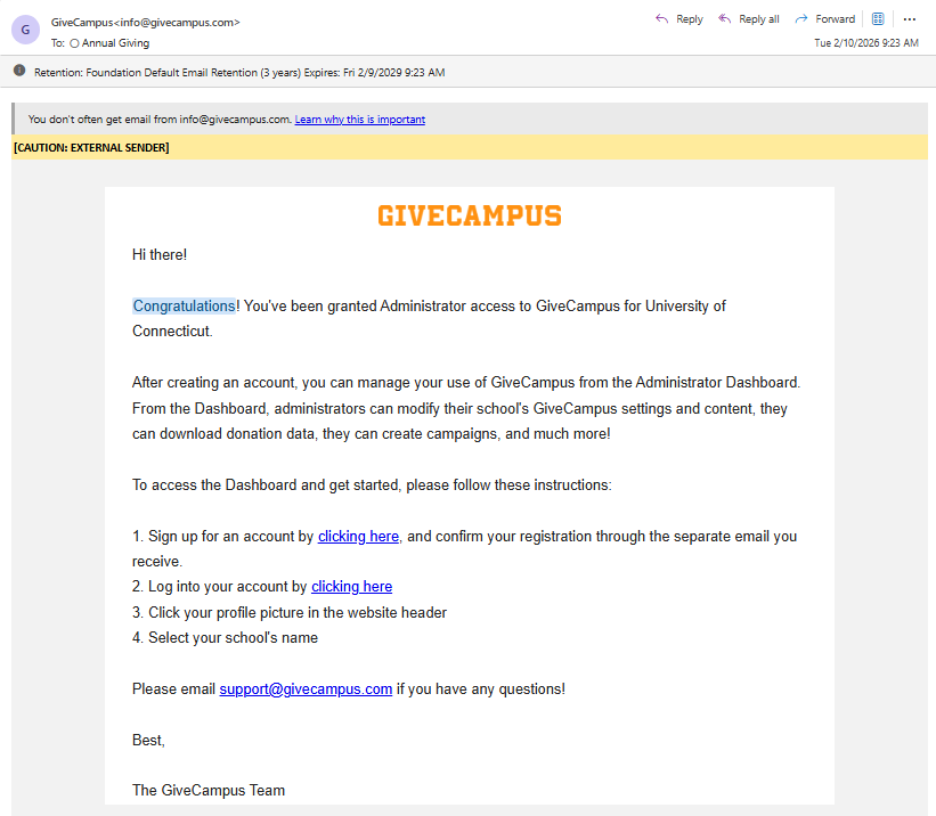
Step 2: If you are new to GiveCampus, click the highlighted link in instruction “1.” to create your GiveCampus account.
If you have an existing GiveCampus account, click the highlighted link next to instruction “2.” to access your account and log in, then skip to the “Editing Your Page” section on this guide. You cannot access and edit your pages without a GiveCampus account.
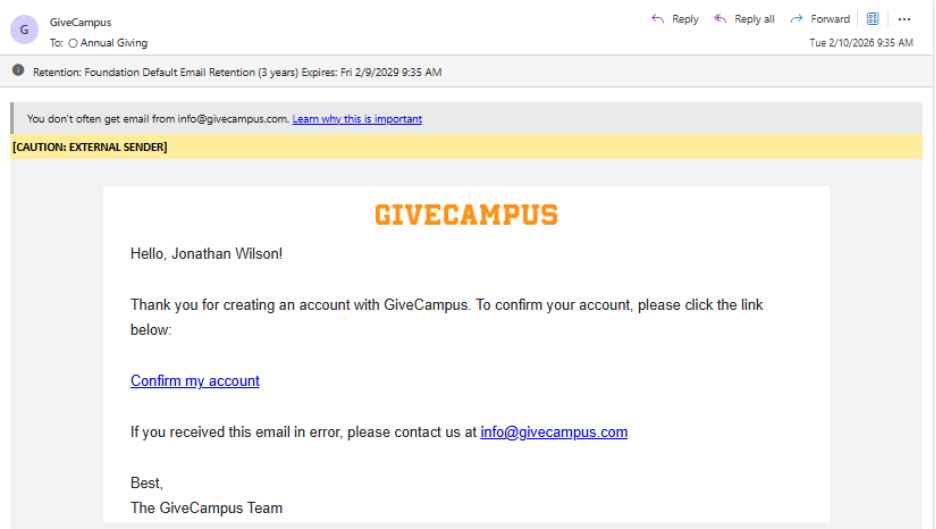
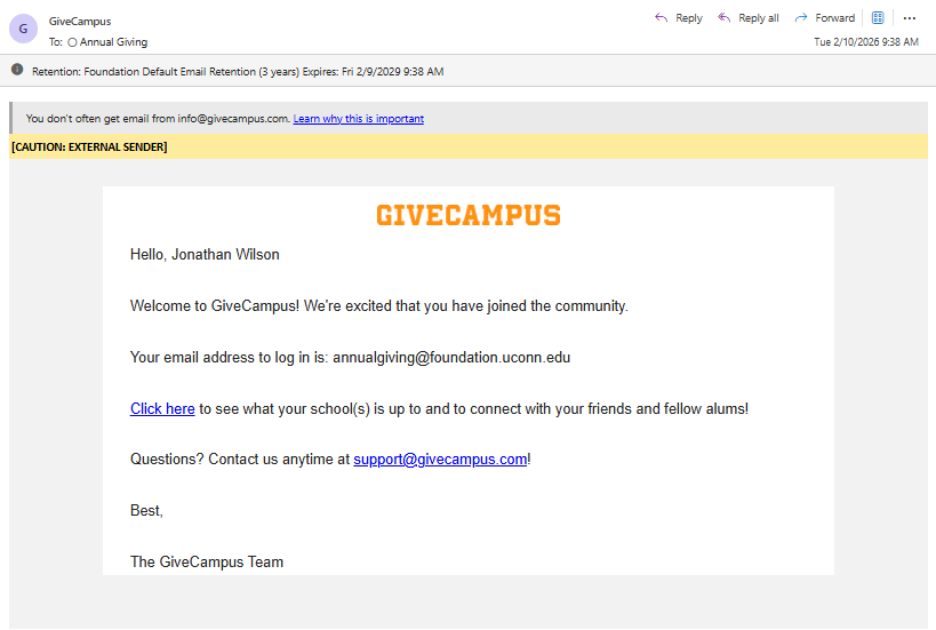
Step 3: You will receive a confirmation message once you have completed your registration. In the email, click “Confirm My Account.” Once confirmed, you will receive a third email welcoming you to GiveCampus.
Editing Your Page
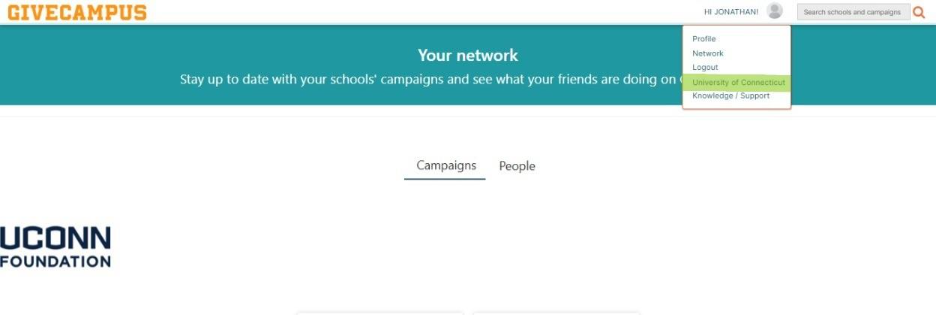
Step 1: Once logged in, click your profile icon on the top right. From the drop‑down menu, select “University of Connecticut.”
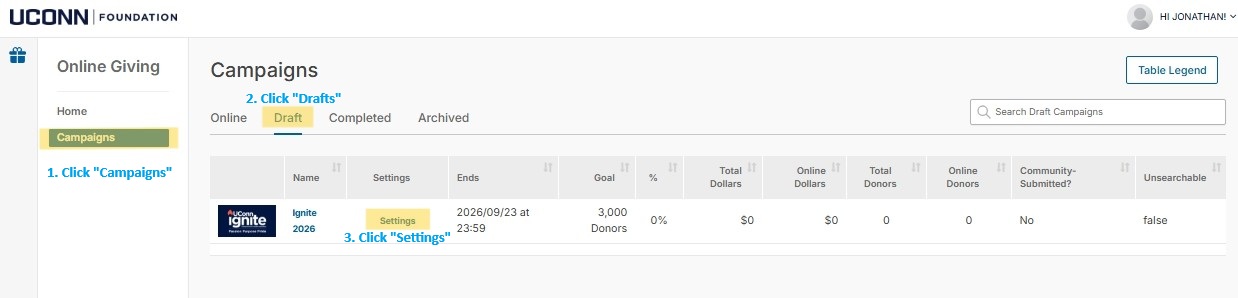
Step 2: In the left‑hand navigation menu, click “Campaigns.” Then select the “Draft” tab. Under this tab, you will see this year’s campaign. Click “Settings” to access the tiered landing pages.
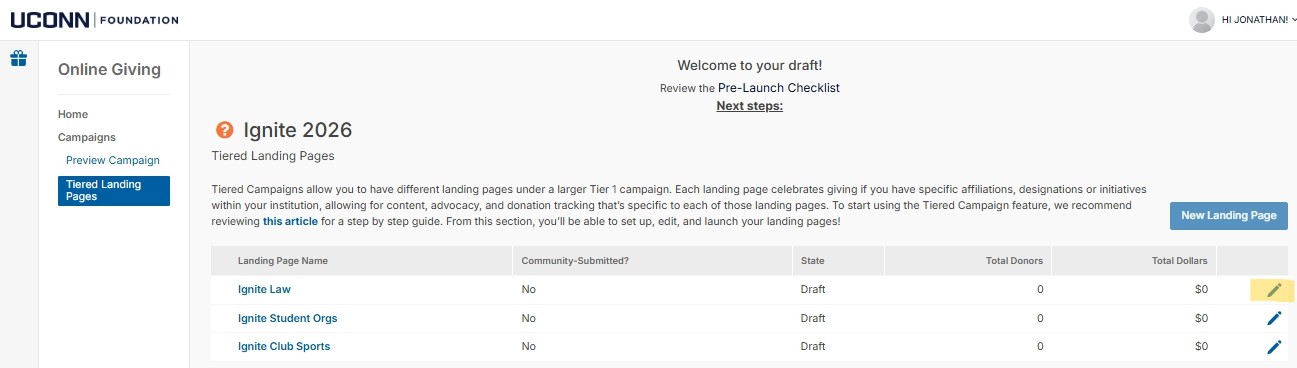
Step 3: To edit your page, click the pencil icon on the right side of your page name. Clicking a page name will open a preview.
Step 4: Begin building or editing your page.
When building your page, do not:
- Change your “Landing Page Name”
- Change the “Landing Page URL”
- Change the “Relevant Gifts” section
- Edit the “Basics – Parent Tier 2 Landing Page” section
- Check off the box labelled “Include custom content section.”
- Change the “Custom Header Logo”
Not following these instructions may cause your page to function incorrectly.
GiveCampus Image Specifications
| Asset | Dimensions | Ratio |
| Tiered Page Background Image | 1920 × 1200 | 8:5 |
| Tiered Page Video Thumbnail (Optional) | 636 × 357 | 212:119 |
| Tiered Page Still Image | 630 × 350 | 16:9 |
| Tier 3 Tile Images | 600 × 400 | 3:2 |
| Custom Content “Breakers” | At least 1200 px wide | About 150 px high |
Section-by-Section Breakdown
Basics:
Landing Page Name – Do not edit. The Foundation will set this as your group’s official name.
Landing Page URL – Do not edit.
Goal Type – Select whether your goal is based on a dollar amount or a donor count.
Goal – Select your fundraising goal for Ignite. The Foundation will set your goal to what you submitted in your application, but you may change your goal to better align with your campaign.
Summary – This section does not apply to your campaign. Any information entered here will not appear on your public‑facing page.
Relevant Gifts:
This section determines which fund your donors are supporting. The UConn Foundation manages this setting, and we ask that you do not make any changes to ensure your page functions correctly.
About:
Use the About section to tell your group’s story and help donors understand who you are, what you do, and why support matters. You may highlight your mission, activities, achievements, upcoming opportunities, or the specific ways Ignite funding will benefit your organization.
Ideas for Your About Section:
Who You Are
- A brief introduction to your group or organization
- Your mission, purpose, or what your group is known for
- The experiences, activities, or opportunities you provide to members
What You Do
- Signature events, programs, competitions, performances, service projects, or activities
- How your group contributes to the UConn community
- Opportunities available to current and future members
Goals for Ignite
- What you are fundraising for this year
- Specific projects, equipment, travel, events, or experiences your support will fund
- How donor support will help your group achieve its goals
Accomplishments & Points of Pride
- Recent achievements, awards, recognitions, or milestones
- Competition results, performances, championships, service impact, or other successes
- Memorable accomplishments that demonstrate your group’s impact
Why Support Matters
- How donations directly benefit your members and organization
- The impact donor support has on participation, programming, or experiences
- Why gifts of any size help your group thrive
Looking Ahead
- Upcoming opportunities, events, or initiatives
- Future goals and aspirations for your group
- How supporters can help make those plans possible
Visual Enhancements
- A banner image that reflects your group and its activities
- Photos of members, events, performances, competitions, or service projects
- Graphics that help tell your group’s story and showcase its impact
All “About” sections must include the following statement: “Any additional funds will be used for the general activities of UConn student-led organizations.”
Custom Content Section:
Do not check off the box labelled “Include custom content section.”
Landing Page Video/Image:
GiveCampus landing pages allow for customizable, high-impact visuals to drive engagement, supporting both video and image formats for campaigns. This will be front and center on your giving page. A 636×357 video is recommended for the best impact in showing off your page and all that your group is about. They should be between 60 and 90 seconds.
If you’re unable to use or create a video for Ignite, you can instead use a 630×350 graphic or photo on your page.
All groups are required to place a video or image in this section.
Background Hero Image:
This 1920×1080 image appears at the top of the page behind the Landing Page Video/Image. This can be left as is with the Foundation-created image, or you can upload your preferred image.
Campaign Card Thumbnail:
This 600 × 400 image represents your group on the Tier 2 landing page and is often the main entry point for donors. Avoid text on the image because the campaign name appears as an overlay.
All groups are required to place an image in this section.
Campaign Updates:
The Foundation will provide updates throughout Ignite. Keep this box checked so updates appear on your page. If you plan to provide your own updates actively, you may leave it unchecked.
Sharing:
Sharing Text – This is the default social media text for your donors that will auto populate when they share your page on social media. A short call to action that sells/markets your campaign is recommended. Donors can share at the top of the page underneath the “Give Now” button
Sharing Hashtag – If your group is using a specific hashtag for Ignite, enter it here. If not, we recommend using #UConnIgnite.
Sharing Image – This is the default image that auto populates when donors share your link via text message.
Default Advocacy Text – This is the default message that auto populates when donors share your link via text message. A short, more personal call to action that sells/markets your campaign is recommended. Donors can share at the top of the page underneath the “Give Now” button.
Donation Form:
Form Header – A brief, optional heading that appears at the top of the donation form after someone clicks your page’s “Give Now” button. Use this only if you want to provide a short, clear title or reminder connected to your page’s giving priority. (The general Ignite giving form will appear if you leave this blank.)
Form Subheader – An optional paragraph that displays directly beneath the form header. This space can offer a short message about the impact of supporting your unit or highlight any key points donors should know before completing their gift. Keep it concise, as donors see this immediately before giving. (The general Ignite giving form will appear if you leave this blank.)
Giving Form Background Image – You may upload a recognizable 1200×1200 image that relates to your page here. This will appear in the background on the giving form after a donor clicks the “Give Now” button. (The general Ignite giving form will appear if you leave this blank.)
Payment Form Background Image – You may upload a recognizable 1200×1200 image that relates to your page here. This will appear in the background on the payment form after a donor fills out the information on the giving form. (The general Ignite giving form will appear if you leave this blank.)
*You may use the same background image on both the giving form and the payment form.
Featured Matches and Challenges:
If your page has applicable matches or challenges, select them here to feature them at the top of the Matches and Challenges section. This option will not be available until Foundation staff uploads the matches and challenges.
Custom Header Logo:
Do not upload an image in this section. The UConn Foundation logo is displayed here and is legally required to indicate that this is a UConn Foundation fundraiser.
Questions?

Jonathan Wilson
Associate Director of Crowdfunding